Thiết bị hội nghị trực tuyến
Điều khiển camera Minrray
Hàng chính hãng, Vinameeting nhập khẩu và phân phối
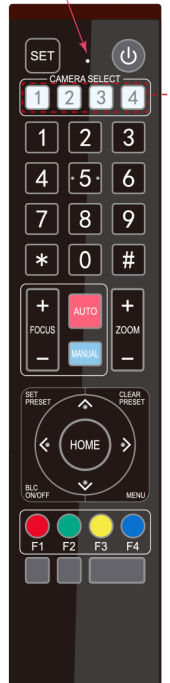
Remote Controller
|
|
1. Standby Key
After 3S long press, the camera will step into standby mode. Long press 3S again, the camera will self-test again and back to HOME position. (Note: If power-on mode is turned on and Preset 0 is set, and there is no operation within 12s, it will automatically point to the specified preset position.
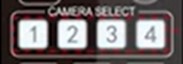
2. Camera Address Selection
Select the camera address which wants to be controlled
3. Number Key
Set or run 0-9 presets
4,*,# Key
Key combination use
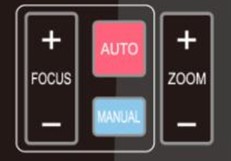
5. Focus Control Key
Auto Focus: Enter into auto focus mode.
Manual Focus: The camera focus mode is manual
Switch the camera focus mode to manual focus by pressing [focus +] or [focus -] to adjust.
6. Zoom Control Key
Zoom+:Lens near
Zoom-:Lens far
7. Set or Clear Preset key:
Set Preset: Set preset key + 0-9 number key:
Clear Preset key: Clear preset key + 0-9 number key
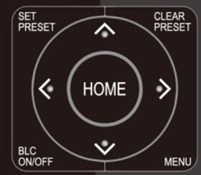
8. Pan/Tilt Control Key
Press Key :Up
Press Key :Down
Press Key :Left
Press Key: Right
“HOME” Key: Return to the middle position or enter into the next level menu
9. BLC Control Key
Back Light ON / OFF: Turn on or off the back light
10. Menu Setting
Open or close the OSD menu
Enter / exit the OSD menu or return to the previous menu.
|
11. Camera IR Remote Control Address Setting
【*】+【#】+【F1】:Camera Address No.1
【*】+【#】+【F2】:Camera Address No. 2
【*】+【#】+【F3】:Camera Address No. 3
【*】+【#】+【F4】:Camera Address No. 4
12. Key Combination Functions
|
1) 【#】+【#】+【#】:Clear all presets
|
2) 【*】+【#】+【6】:Restore factory defaults
|
|
3) 【*】+【#】+【9】:Flip switch
|
4) 【*】+【#】+Auto: Enter into the aging mode
|
|
5) 【*】+【#】+【3】:Menu set to Chinese
|
6) 【*】+【#】+【4】:Menu set to English
|
|
7) 【*】+【#】+Manual: Restore the default user name, password, and IP address
|
8) 【#】+【#】+【0】:Switch the video format to 1080P60
|
|
9)【#】+【#】+【1】: Switch the video format to 1080P50
|
10)【#】+【#】+【2】:Switch the video format to 1080I60
|
|
11)【#】+【#】+【3】:Switch the video format to 1080I50
|
12)【#】+【#】+【4】:Switch the video format to 720P60
|
|
13)【#】+【#】+【5】:Switch the video format to 720P50
|
14)【#】+【#】+【6】:Switch the video format to 1080P30
|
|
15)【#】+【#】+【7】:Switch the video format to 1080P25
|
16)【#】+【#】+【8】:Switch the video format to 720P30
|
|
17)【#】+【#】+【9】:Switch the video format to 720P25
|
|
3.2.2Applications
Finishinginitialization, it can receive and execute the IR commands. Press the remotecontroller button, the indicator light is flashing; release the button, theindicator light stops flashing. Users can control the pan/tilt/zoom, settingand running preset positions via the IR remote controller.
KeyInstruction:
1.In this instruction, “press the key” means a click rather than a long-press,and a special note will be given if a long-press for more than one second is required.
2.When a key-combination is required, do it in sequence. For example,“ 【 *】+【#】+【F1】”meanspress“【*】”first and then press“【#】”and last press“【F1】”.
1) Camera Selection
|
|
Select the camera address to control.
|
2) Pan/Tilt Control
|
|
Up: press Down: press
Left: press Right: press
Back to middle position: press“【HOME】”
Press and hold the up/down/left/right key, the pan/tilt will keep running, from slow to fast, until it runs to the endpoint; the pan/tilt running stops as soon as the key is released.
|
3) Zoom Control
|
|
ZOOM IN: press “ZOOM “ key
ZOOM OUT: press “ZOOM ” key
Press and hold the key, the camera will keep zooming in or zooming out and stops as soon as the key is released.
|
4) Focus Control
|
|
Focus (near):Press “【focus+】” key (Valid only in manual focus mode)
Focus (far): Press “【focus-】”key (Valid only in manual focus mode)
Auto Focus: Support
Manual Focus: Support
Press and hold the key, the action of focus will keep continue and stops as soon as the key is released.
|
5) BLC Setting
6) Presets Setting,Running, Clearing
|
|
1. Preset setting: to set a preset position, the users should press the “【SET PRESET】” key first and then press the number key 0-9 to set a relative preset,
Note: 10 preset positions in total are available by remote controller.
2. Preset Running: Press a number key 0-9 directly to run a relative preset.
Note: Action in vain if a relative preset position is not existed.
3. Preset clearing : to clear a preset position, the user can press the “【CLEAR PRESET】” key first and then press the number key 0-9 to clear the relative preset;
Note : press the“【#】” key three times continually to cancel all the presets.
|
7) Camera RemoteController Address Setting
|
|
【*】+【#】+【F1】:Camera Address No.1
【*】+【#】+【F2】:Camera Address No. 2
【*】+【#】+【F3】:Camera Address No. 3
【*】+【#】+【F4】:Camera Address No. 4
|